
FCC Analysis Facility at Brookhaven National Laboratory
The FCC Analysis Facility (AF) at Brookhaven National Laboratory’s Scientific Data and Computing Center (SDCC) provides high-performance computing resources for the Future Circular Collider (FCC) physics community. This facility offers an integrated environment for interactive analysis, batch processing, machine learning, and large-scale data storage.
Built on the same foundation as the ATLAS Tier-3 facility, the FCC AF provides CPU and GPU computing resources, Jupyter notebooks, shared storage, and access to high-energy physics software such as CVMFS, ROOT, Rucio, and Key4HEP.
The facility evolves continuously to support the FCC program’s computing and analysis needs, including GPU acceleration and machine-learning workflows.
Currently, it includes:
- 100 CPU nodes for general purpose computing
- 10 NVidia L40S GPU for ML and vectorized computing
- ~100 TBs for common disk space for sharing datasets
0. Getting Started
There are different ways to access the FCC Analysis Facility, depending on your needs
You can connect using:
- Your BNL SDCC account (for SSH, Jupyter, and batch access)
- A federated login via your CERN, Fermilab, or SLAC identity (for Jupyter-only access)
The following sections explain each path in detail. A full BNL SDCC accounts takes some time to setup but has access to different types of workflow, a federated login is relatively quick to access, but it is limited to Jupyter interface for terminal and notebook access.
It is recommend to first start with a federated login and if afterwards you find the need for a full account, please follow the instructions below to request an account.
1. Access with an SDCC Account
Users with full SDCC accounts can use both SSH and JupyterLab to access the FCC Analysis Facility and its batch computing resources. Instruction for requesting a full account are provided
SSH Access
Access to the nodes occurs through the SDCC gateway. To allow for this, add the following to file $HOME/.ssh/config on your laptop or local machine
Host atlasgw
  HostName ssh.sdcc.bnl.gov
  User yourUsername

Host spoolsub*
  User yourUsername
  ProxyCommand ssh atlasgw nc %h %p
To login, you can do:
ssh spoolsub01 or ssh spoolsub02After logging in, many software environments are available through CVMFS. To setup the HEP environment for FCC software,
source /cvmfs/sw.hsf.org/key4hep/setup.shA user working directory with standard SDCC quota is available for your work. A larger working directory can be made at
/gpfs/mnt/gpfs01/usfcc/<yourUsername>Note: Disk usage is monitored under an honor system — please keep data organized and minimal. This directory can be used to store and share large datasets
Submitting Jobs with Condor (CPU & GPU)
The batch system uses HTCondor for job scheduling.
Step 1: Request to be added to the FCC accounting group:
Email: rt-racf-useraccounts@bnl.gov
Subject: Add me to group_usfcc
Step 2: Include this in your Condor job file:
accounting_group = group_usfcc
request_memory = 2000
GetEnv = True
Job limits:
- Maximum runtime: 3 days
- Jobs exceeding limits may be evicted automatically
Submit and monitor jobs:
condor_submit my_job.job
condor_q
For requesting nodes with GPU, include the following in your Condor job file:
accounting_group = group_usfcc
request_memory = 2000
GetEnv = True
+want_gpu = True
request_GPUs = 1
Accessing Jupyter Notebooks
Full SDCC users can log in to the JupyterHub portal for interactive analysis through their SDCC account. The steps are the same as accessing through federated identify. Please follow the instructions there.
2. Access via Federated Identity (CERN, Fermilab, or SLAC Users)
If you have an account with CERN, Fermilab, or SLAC, you can access the FCC Jupyter environment using Federated Login — no SDCC account required.
Capabilities
- Run Python and ROOT notebooks interactively
- Access CVMFS and dCache FCC datasets
- Use pre-installed ML and HEP tools
Limitations: Federated users cannot use SSH or submit Condor batch jobs. For that, you must apply for a full SDCC account.
Requesting an Federated account
Prerequisites
As a prerequisite, you will need to obtain an ORCID number.
Apply for account
To start: connect to https://federated.sdcc.bnl.gov/
You will first come to this authorization page:
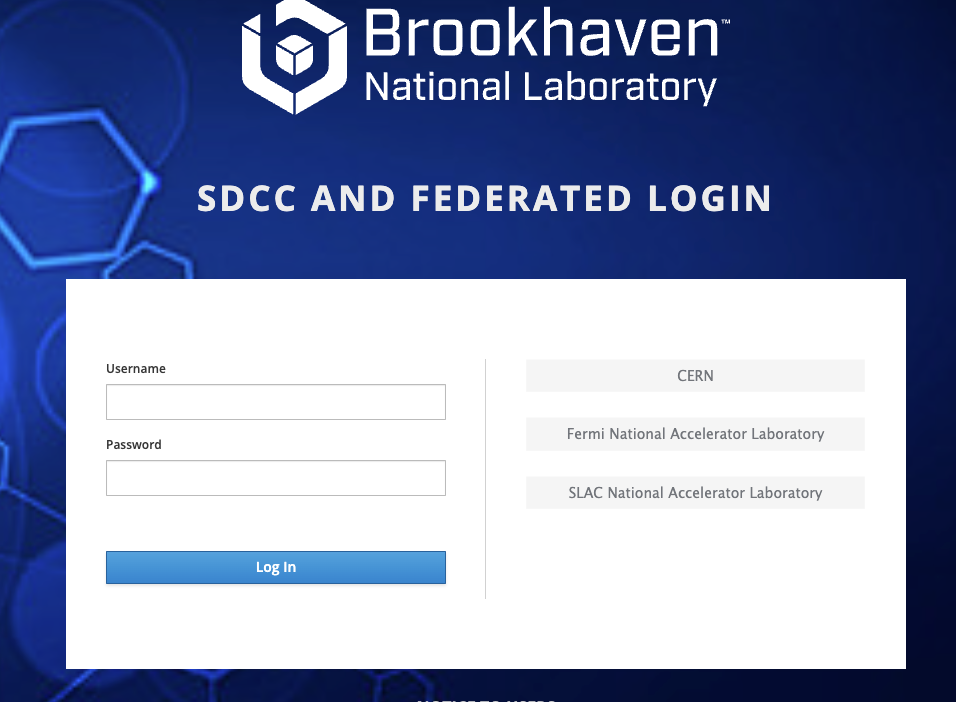
Use one of the option on the right, CERN/Fermilab/SLAC to first login
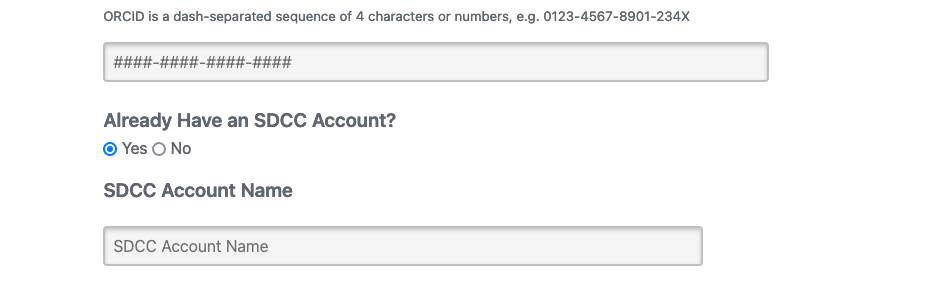
Once you have successfully logged in, you will be directed to an account registration page. On this page, all fields are required, in particular the ORCID as shown below.

If you have an existing SDCC Account, please select the “Yes” button and enter your SDCC username. This will help us map your federated login to this existing account.
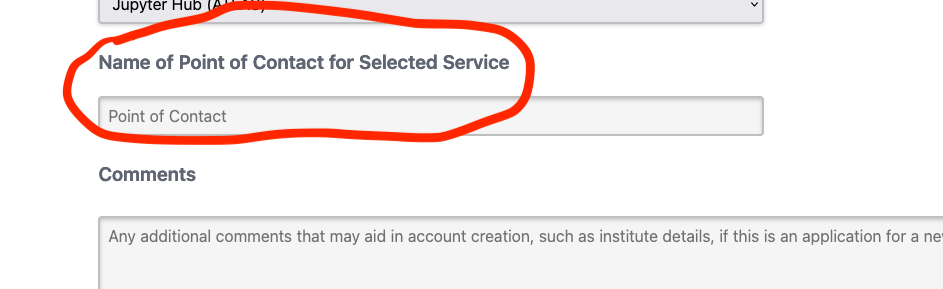
Finally, as a verification step, you will be required to enter the designated point of contact’s name. Please contact Haider Abidi (sabidi@BNLSPAMMENOT.gov) to get the contact information
Once you submit your account request, you will receive an email from RT-RACF-UserAccounts@bnl.gov with subject line starting with “Lightweight User Account Request for ATLAS Federated ID from .” You will be informed through the RT ticket via email when your account has been created. At that point, you will be able to log in with your federated credentials on the jupyterhub portal at https://atlas-jupyter.sdcc.bnl.gov/.
Accessing Jupyter Notebooks
To begin, visit the link below:
👉 https://fcc-jupyter.sdcc.bnl.gov/fcc-landing/
Login Instructions
- Open the FCC Jupyter landing page in your browser.
- Click “Login” when prompted.
- Choose your login method as show in the picture below:
- SDCC Account – Use your BNL SDCC username and password (with MFA).
- Federated Identity – Select your home institution (e.g. CERN, Fermilab, or SLAC) from the drop-down list and sign in using your institutional credentials.
- Once authenticated, you will be redirected to the FCC JupyterLab environment.

After Login
- From the Jupyter dashboard, click “New → Notebook” to create a Python or PyROOT session. See the picture below for selecting the various options:
- Your home directory will be mounted automatically (for SDCC users, this is usually
/gpfs/mnt/gpfs01/usfcc/<yourUsername>). - You can access the standard HEP software stack — including ROOT, Python, Key4HEP, and machine learning libraries — directly within the notebook.

Troubleshooting
- For technical issues, contact the SDCC helpdesk at rt-racf-useraccounts@bnl.gov.
3. Requesting an SDCC Account
To gain full access (SSH, Condor, and Jupyter), request a Brookhaven SDCC account by following these steps.
Full SDCC Account
- Go to the BNL Account Request Page.
- If you don’t have a BNL Guest Number, register for one.
- Complete required cybersecurity and computer use training.
- Submit your account request and await approval.
- Once approved, you’ll receive your credentials via email.
- Email
rt-racf-useraccounts@bnl.govto join the FCC group:group_usfcc.
Federated Identity Account
Users who only need Jupyter access can apply for a Federated Identity Account through COmanage. This method uses your institutional login (CERN, Fermilab, SLAC) and is faster to obtain.
After Account Creation
- Set up Multi-Factor Authentication (MFA)
- Register your SSH keys if using terminal access
- Verify access to
ssh.sdcc.bnl.govand JupyterHub
4. Quick Reference Guide
| Access Type | Institution | Features | Account Type |
|---|---|---|---|
| Full SDCC Access | BNL Users | SSH, Jupyter, Condor (CPU/GPU), Storage | SDCC Account |
| Federated Access | CERN / Fermilab / SLAC | Jupyter only (no SSH) | Federated Identity |
| Batch Jobs | SDCC Users in group_usfcc | Condor CPU (GPU coming soon) | Full SDCC + Group Membership |
5. Support and Resources
For account issues:
📧 rt-racf-useraccounts@bnl.gov
Documentation and Help: